Admin
The Admin screen is where you name the app, connect and configure sources, manage buckets, back up your data, and set up the AI brain.
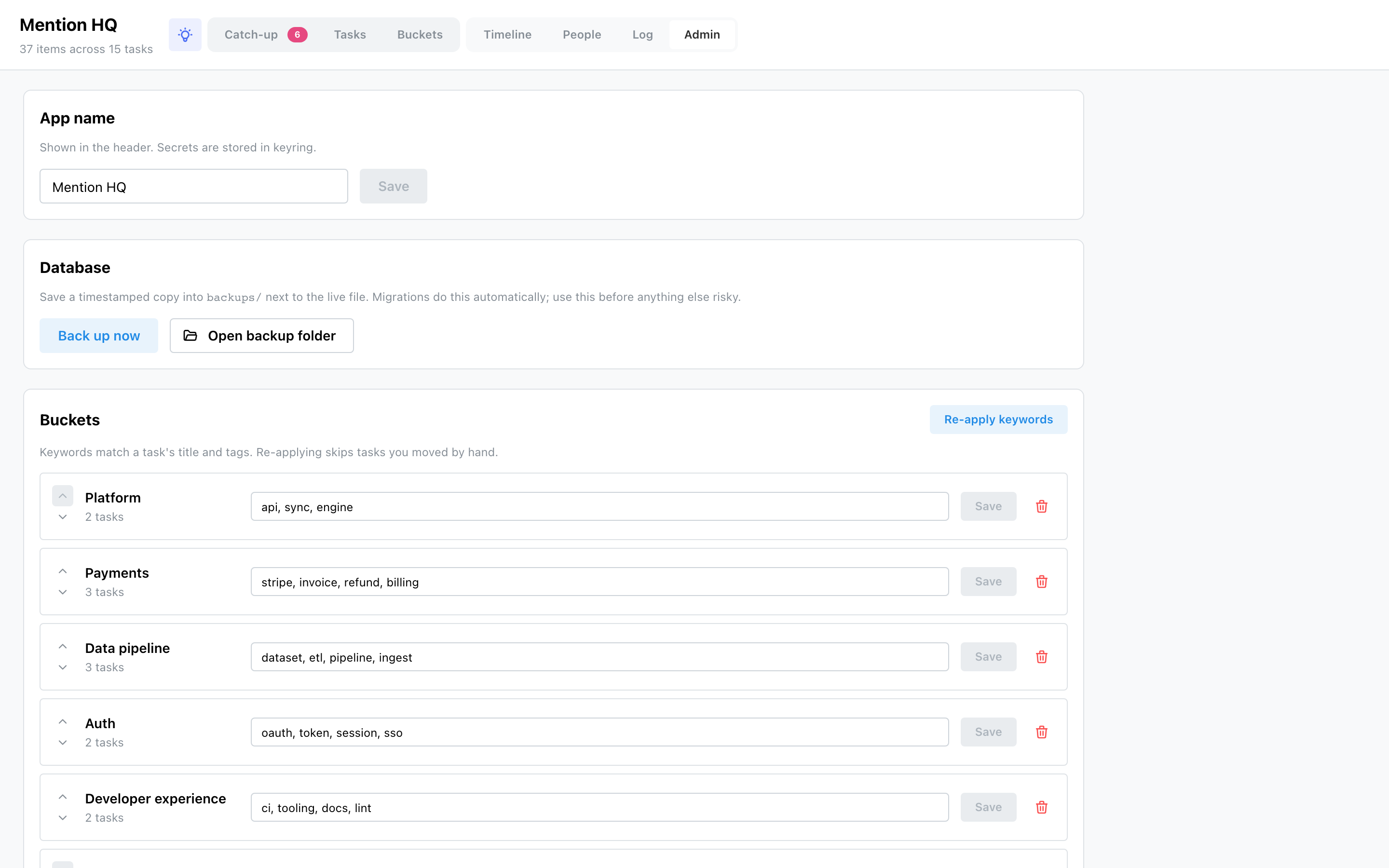
App name
The name shown in the header (and, live, in the installed PWA's title). It's a normal setting — change it and Save.
Database
- Back up now — writes a timestamped copy into
backups/beside the live database (migrations do this automatically too). - Open backup folder — reveals
backups/in your file manager.
Buckets
- Re-apply keywords — re-matches every task against bucket keywords, skipping tasks you moved by hand.
- Per bucket: reorder (up/down), edit its keywords (Save), or delete it (its tasks fall to Uncategorized). Uncategorized is implicit — it can't be edited, moved or deleted.
- Create a bucket with a name and comma-separated keywords.
Connected sources
Add a source from the picker (you can connect the same kind more than once — a work and a personal GitHub). Each source card gives you:
- a status badge, description and setup help, and a rename control;
- a config form generated from the source's own fields — text inputs, secret fields (shown as Stored once set, never blanked), select fields when detection offers choices, and folder browse fields;
- for OAuth sources (Notion), the exact Redirect URI to register and a Connect button;
- footer actions: Save (only edited fields are sent), Detect (auto-fill from a local CLI, where supported), Test connection, and Remove (deletes the credentials; items already on tasks stay).
See Sources for what each one brings and how to authenticate it. Secrets go to your OS keychain, never the database — the API only ever returns a masked hint.
AI
Shows whether the brain is available and which model it uses. You can store an
API key (or Clear it to fall back to your environment / logged-in claude CLI), and
Compute next actions to backfill a next action for every task that lacks one.