The board
The board (the Buckets tab, and the app's home route) lays your tasks out as columns — one per bucket, plus an implicit Uncategorized — with the tasks you haven't sorted leading.
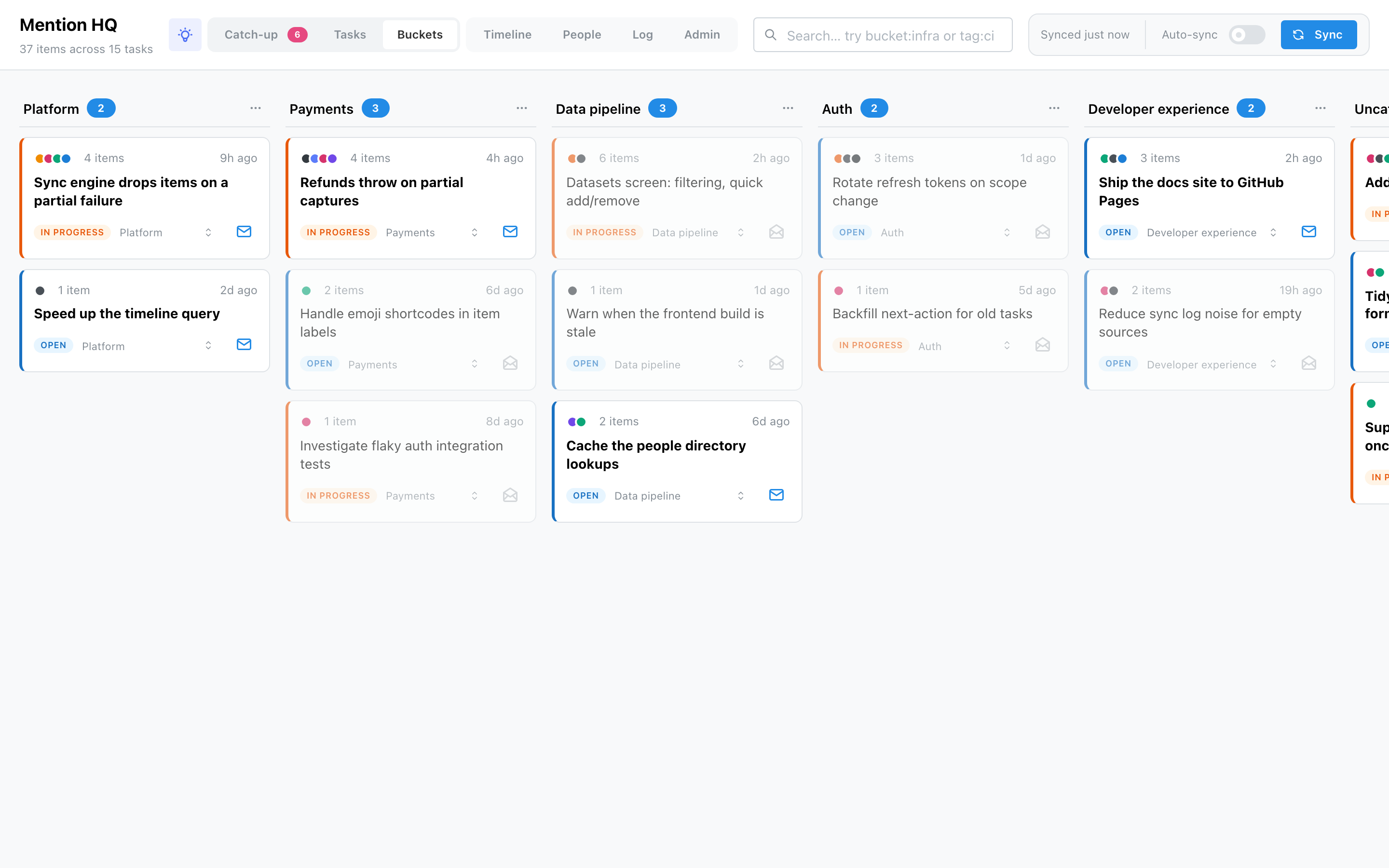
Task cards
Each card shows the task's source dots, its item count, the age of its newest item, and its title (bold when unread, dimmed once read), with a left border and a pill coloured by status.
- Open a task — click the card body → task detail.
- Move it to another bucket — the inline dropdown on the card. Choosing a bucket by hand pins it, so a keyword re-apply never moves it back.
- Mark read / unread — the envelope toggle.
Columns
- Focus a column — click its header to expand it and dim the rest; click again to release.
- Column menu (⋯, on real buckets only) — Archive or Delete the bucket. Each opens a confirm dialog with a checkbox to also archive/delete its tasks. Without the cascade, delete re-homes the tasks to Uncategorized; archive just hides the bucket and (optionally) its tasks.
- Add a bucket — the ghost button at the end of the row opens a modal for a name and comma-separated keywords.
Search
The header search (shared with Timeline and Catch-up, focus it with
⌘/Ctrl-K) filters the board live. It understands bucket:name and tag:label as well as plain
text — the placeholder shows try bucket:infra or tag:ci.
Buckets are keyword-matched
A bucket claims a task when one of its keywords appears (case-insensitively) in the task's title or tags; the first bucket in order wins. You manage keywords, reorder buckets and re-apply them from Admin → Buckets.