Catch-up
Catch-up is the inbox of everything you haven't ruled on — every item a sync brought in that isn't filed onto a task and wasn't auto-skipped. The tab carries a badge with the count.
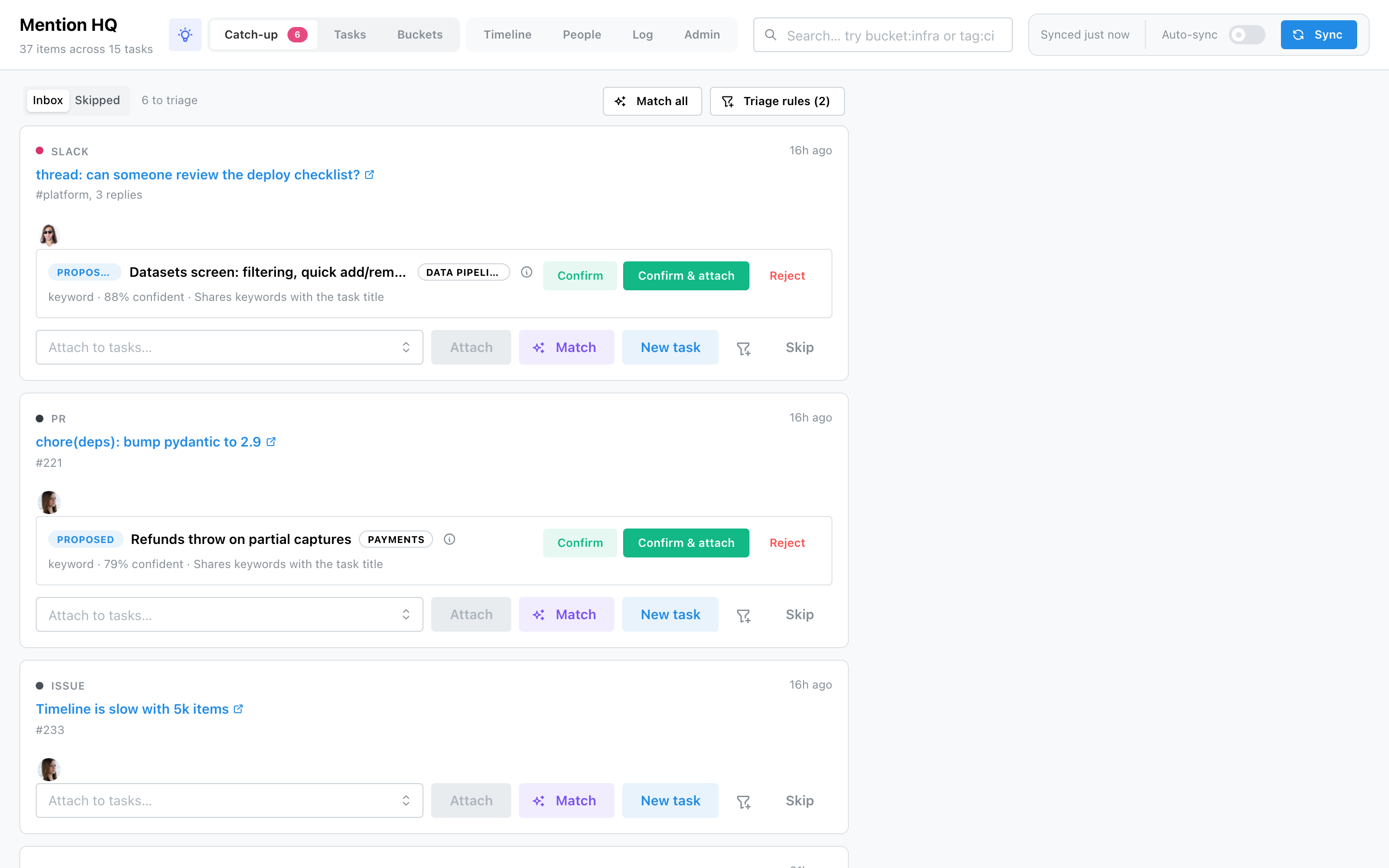
Two tabs: Inbox (untriaged items, items the engine already proposed a task for leading) and Skipped (with a time-window filter). The header search filters both.
Ruling on an item
Each card shows the item and, beneath it, any proposals — a task the engine matched, with its bucket, engine, confidence and reason, and an info icon that previews the task. A tracker item also shows its own status — a Linear issue's In Progress or In Review — as a coloured badge, the same way a PR shows its review state. From there:
- Confirm a proposal stages that task into the item's attach box — it does not file the item yet. Confirm & attach files the item onto that one task in a single click, for the common case where it belongs to just one task. Reject dismisses the proposal outright (and the rejection sticks).
- Attach files the item onto every task selected in the attach box.
- Match asks the AI brain to suggest tasks for this one item, pre-selecting them in the attach box for you to review.
- New task creates a task from the item (title prefilled, optional bucket and priority) and stages it — you still press Attach to file.
- Ignore seeds a triage rule from this item — its source and label prefilled — so lookalikes are skipped on future syncs; the item you're on is skipped now too.
- Skip moves the item to the Skipped tab; from there Un-skip returns it to the inbox.
Confirm stages, Attach files
Confirming a proposal only adds its task to the attach box, so you can add more tasks before filing. Nothing is attached until you press Attach — or use Confirm & attach to do both at once when the item goes to a single task.
Match all
Match all kicks off a background pass that drains the whole inbox, asking the brain about each un-matched item in batches. A progress bar shows how many items are left with a Stop button; items the engine already proposed are counted without a brain call. The same pass also runs automatically after every sync, so freshly arrived items reach the inbox already matched — the button is there for when you want to force one. Requires the AI brain to be configured.
Triage rules
The Triage rules button opens the standing "skip this" filters. A rule matches an item's label
by contains or starts with, optionally scoped to certain sources (empty = every source),
and auto-skips it before it reaches the inbox — the app-shipped equivalent of a mail filter (a
skipped item shows Rule: <name> as its reason). Rules only skip; they never attach anything. The
quickest way to add one is an item's Ignore button, which opens this form prefilled from the
item you're looking at.
Brain dump
The lightbulb button in the header opens Brain dump — a distraction-free page to type a thought straight into an item. Left unattached it flows into this inbox; attach it to tasks as you submit and it's filed straight onto them. A brain dump can also carry a URL and title, becoming a clickable link item whose typed text is its description. Note items stay editable in place.